
Granite and monument inventory, linked to your orders
MonuDesk keeps your granite, vases, urns, QR codes, vaults and services in one inventory, linked to your orders. Confirmed orders can add their stones to the inventory list by themselves, a received purchase order tops up the counts, a stone can be pulled from stock for one specific order, and reorder alerts tell you when something runs low. Inventory is on the Pro plan, $299 a month.
By Dennis Rodin
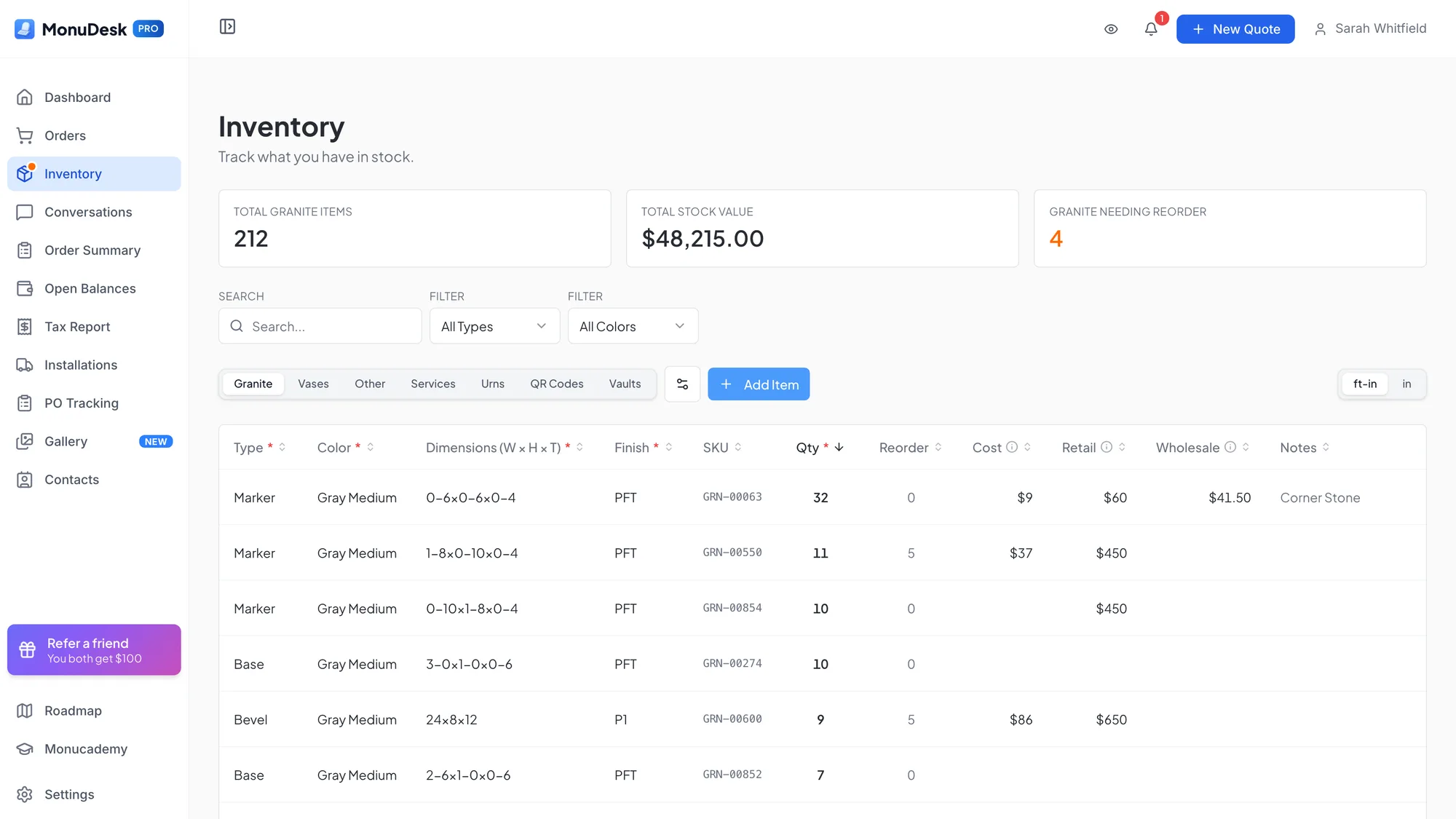
What MonuDesk inventory tracks
MonuDesk inventory holds everything a monument shop stocks, in tabs: Granite, Vases, Other, Services, Urns, QR Codes and Vaults, plus a Photos tab you can switch on and a Granite Tiles type for shops that stock tile. Each tab has its own search and filters. Search understands SKUs and sizes, so "1x1" finds the stock in that size. You can reorder and hide tabs, and add quick tabs for one granite type, such as just Slant or just Footstone.
Pull a stone from stock for one order
Every stone and every base on an order can be reserved and pulled from your stock. Pick the stone from a list with clean names and sizes such as 4x9x9, searchable by name, SKU, color or size. Pulling takes the unit off your stock, the order shows its SKU, and a Return button puts it back on hand if plans change.
How stock gets added and taken off
- From confirmed orders. With Auto sync on, saving a confirmed order adds the stones on it to your inventory list, one row per stone at a quantity of 0 until you enter the real count, and skips anything that already matches, so you do not get duplicates.
- From a received purchase order. When the stones you ordered arrive, mark the purchase order completed and MonuDesk offers to add them to your on-hand counts.
- When you confirm an order. If the order uses stones you already stock, MonuDesk asks "Take these from your inventory?" and deducts them only if you say so. Quotes and drafts never change your counts.
Quotes from what you have
When you build a quote and choose the monument type and color, MonuDesk lists matching items from your inventory and from past orders, each with its retail price. Picking one fills in the stone's colors, sizes, finishes, lettering and price, and every field stays editable.
Reorder alerts
Set a reorder point on an item and MonuDesk warns you when stock runs low: an orange Reorder tag at the reorder point, a red Out of stock tag at zero, and a dot on the Inventory menu so you see it from any page.
Count sheets
For a stock count, filter the table and click Print: the count sheet lists the item, SKU, size, color, location and the quantity MonuDesk has on record, with blank Counted and Notes columns to write on. Download CSV gives the same list as a spreadsheet.
Wholesale prices and more than one location
Shops that sell wholesale can keep a wholesale price next to the retail price on every item; quotes for wholesale contacts use it automatically. Shops with several locations keep one shared list of stones with the retail price, wholesale price, quantity and reorder point set per office.
QuickBooks Online
If your stones, vases and services already live in QuickBooks Online, MonuDesk pulls in your Products & Services list and keeps prices and stock counts in step both ways. How the QuickBooks Online connection works.
Which plan
Inventory is on MonuDesk Pro, $299 a month or $249 a month on yearly billing, and in the 7-day Pro trial. When you upgrade from Basic, the inventory built from your past orders is already there.
Questions about inventory in MonuDesk
Try MonuDesk for 7 days.
Put your next orders in it and see what your week looks like.